How to Schedule and Track Vehicle Maintenance with Bouncie Care
Keeping up with routine vehicle maintenance is straightforward in theory but easy to neglect in practice, especially when you are managing more than one vehicle. When it comes to oil changes, tire rotations, brake inspections, fluid checks, and the like, we know they all factor into keeping vehicles on the road. When you are managing multiple vehicles, or simply juggling a busy schedule, it becomes surprisingly easy to forget what is due and when.
For families, that can mean unexpected repairs or safety concerns. For businesses, it can mean downtime, lost revenue, and unnecessary expenses. The problem is not a lack of intention, it is a lack of structure.
That is where Bouncie Care comes in. Instead of relying on memory, sticky notes, or disconnected spreadsheets, Care helps you schedule routine maintenance, receive reminders, and keep organized service records in one place.
What is Bouncie Care?
Bouncie Care is a maintenance scheduling feature built into the Bouncie web platform. It allows you to create a library of recurring or one-time services, assign them to specific vehicles, set due dates by mileage or time, and receive reminders before service is needed. The result is a proactive approach to vehicle upkeep rather than a reactive one.
You can create services such as oil changes, brake inspections, tire rotations, fluid checks, or any other recurring maintenance your vehicles require. You decide whether each service is due by mileage, by time, or by both. You also choose when you want to be reminded.
While you can view maintenance information in the mobile app, the browser experience offers the most complete and flexible setup. From Bouncie on the web, you can build your Service Library, apply services to specific vehicles, and maintain a detailed service history. Think of Care as your structured maintenance system inside Bouncie. It does not replace your mechanic or shop, it gives you the scheduling layer that ensures you never arrive at a service appointment late or miss one entirely.
Who Should Use Bouncie Care?
For business owners and fleet operators, missed maintenance is a direct business risk. An unplanned breakdown pulls a vehicle out of rotation, delays service delivery, and can turn a routine oil change into a costly repair. Small fleets need standardized service intervals to stay ahead of these risks. Rental and car-sharing hosts need vehicles that are always ready for the next booking. Field service companies depend on reliable vehicles to serve customers without interruption.
Care helps create that consistency. Instead of guessing when a vehicle might be due for service, managers can see upcoming maintenance at a glance, making it easier to schedule service during slower periods rather than scrambling during peak demand.
Families who maintain multi-vehicle households often struggle to remember which car had its last oil change and when the next inspection is due. Parents managing teen drivers can use Care to reinforce responsibility and ensure those vehicles remain safe and reliable.
Whether you manage five vehicles or just one, the value is the same: fewer surprises, better organization, and more predictable performance.
Getting Started: Accessing Bouncie Care on the Web
Once you log in to your Bouncie account in a web browser, accessing Care is straightforward. Click the hamburger menu in the upper left corner of the screen. From the menu options, select Care.
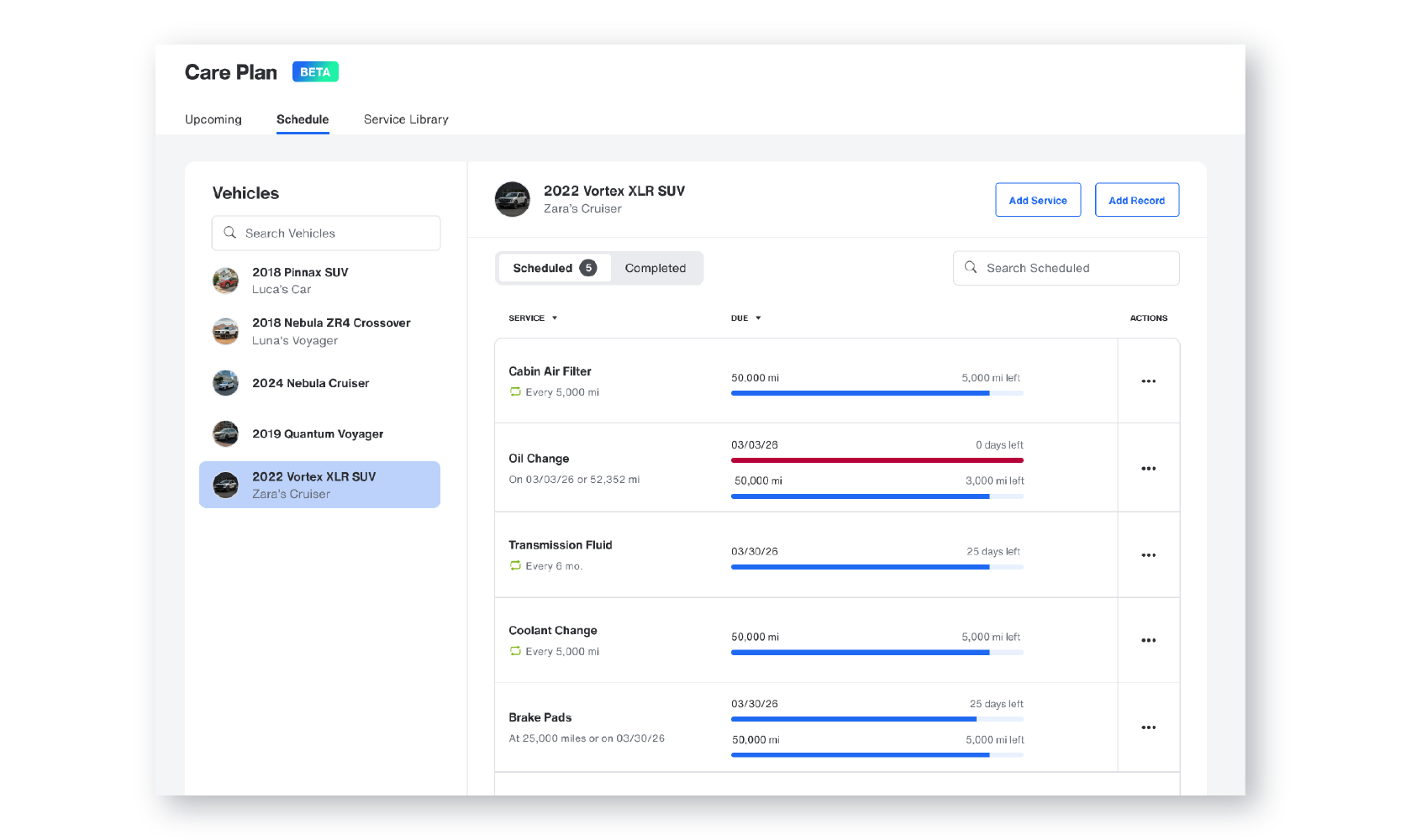
You will enter the Care section, where you can build your Service Library, schedule services for individual vehicles, and review upcoming or completed maintenance events. Vehicles appear along the left side, and the main workspace updates based on the vehicle and tab you select.
Before scheduling anything for a specific vehicle, it is best to start with your Service Library. The Service Library is where you define the types of maintenance you want to track. Once those services exist in the library, you can apply them to any vehicle in your account.
Service Library: Build Your Maintenance Menu First
The Service Library is your master list of maintenance services. Bouncie includes a set of preset services to help you get started quickly. Every service type you plan to track lives here first. When you are ready to schedule maintenance for a specific vehicle, you select services from this library and apply them. Define a service once and reuse it across as many vehicles as needed.
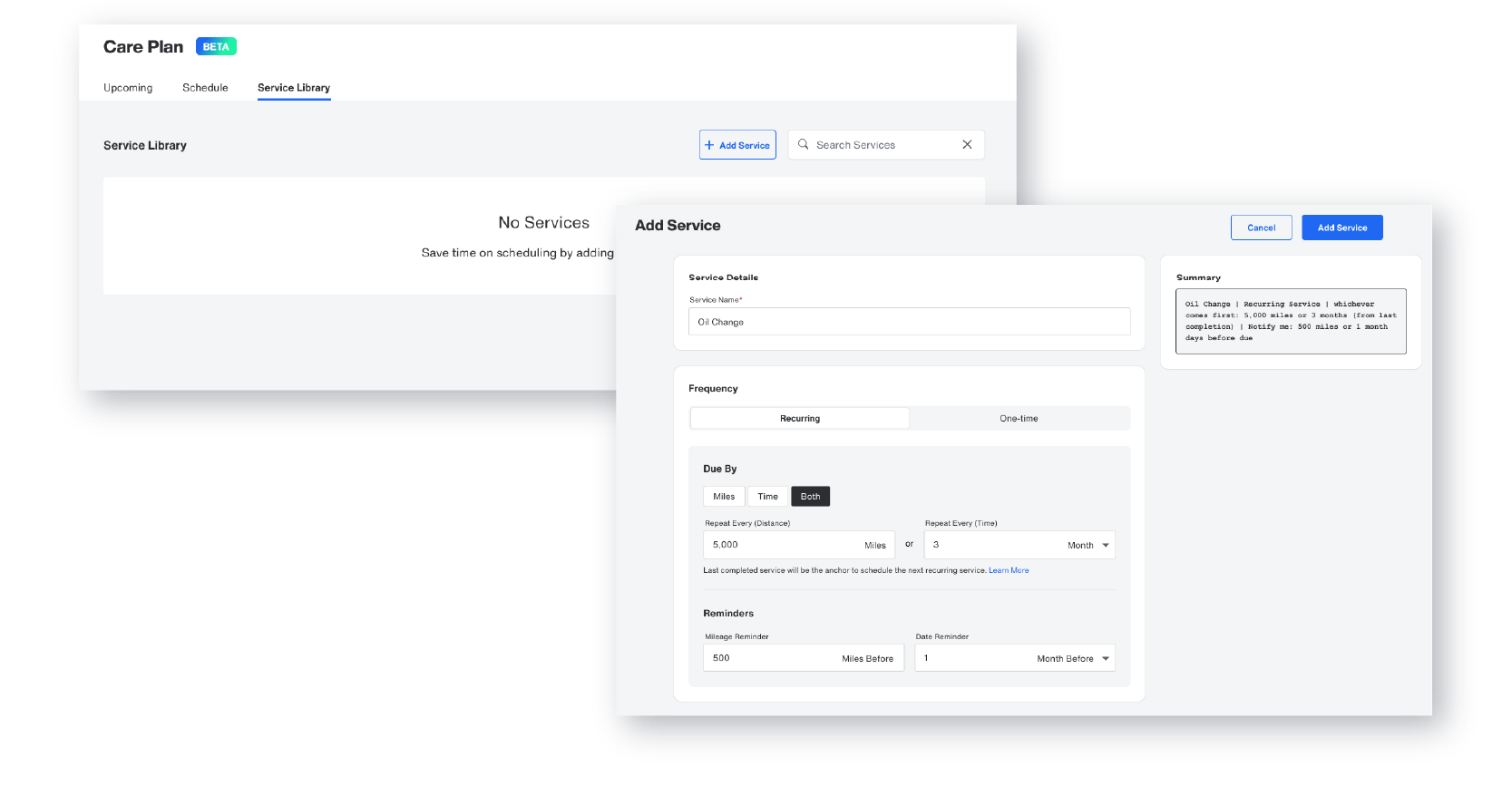
To add a new service, click the + Add Service button next to the search field. When naming the service, use clear and consistent conventions. For example, “Oil Change 5,000 Miles” or “Quarterly Brake Inspection.”
Next, choose whether the service is recurring or one-time. Recurring services are ideal for oil changes, tire rotations, and inspections. One-time services might include a specific repair or replacement.
You will then select how the service becomes due. You can set it by miles, by time, or by both. If you choose mileage, you will enter an interval, such as every 5,000 miles. If you choose time, you might select every six months. If you choose both, the system will track whichever comes first.
After setting the frequency, enter when you would like to be reminded. This allows you to plan ahead instead of reacting at the last minute. When everything is complete, click Add Service in the upper right corner to save it to your library.
You can edit, duplicate, or delete services at any time by clicking the ellipsis next to a service. Editing allows you to adjust intervals or reminders. Duplicating is helpful if you want similar services with slight variations. Deleting removes services you no longer need.
Taking a few minutes upfront to build a thoughtful Service Library makes scheduling faster and more consistent across all vehicles.
Scheduling Care Events for Specific Vehicles
Now that your services are defined, it is time to apply them to individual vehicles.
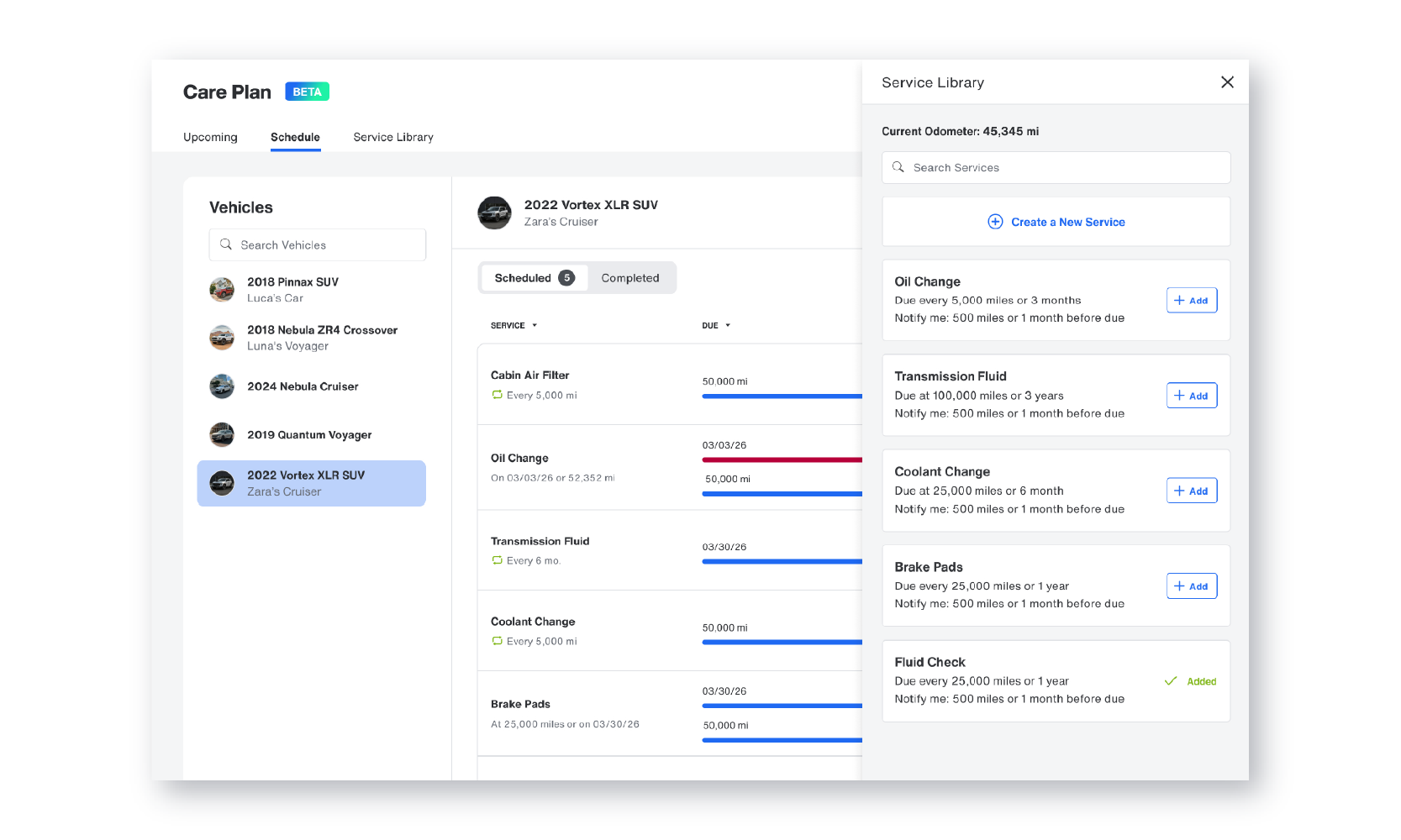
From the Care section, select a vehicle from the list on the left. Click the Add Service button in the upper right. The Service Library will slide open, displaying the services you created.
To schedule a service, click the + Add button next to it. If you realize you need a new service that is not yet in the library, you can click + Create a New Service directly from this slider. Once you have added the necessary services to the vehicle, close the Service Library slider by clicking the X in the upper right.
At this point, the vehicle has defined maintenance services attached to it, each tracking progress toward its due date by mileage, time, or both. This is where the planning you did in the Service Library becomes actionable.
If a service is completed, click the ellipsis next to it and select Mark as Complete. If you need to remove a scheduled service, select Delete from the same menu.
Viewing Upcoming Care Events
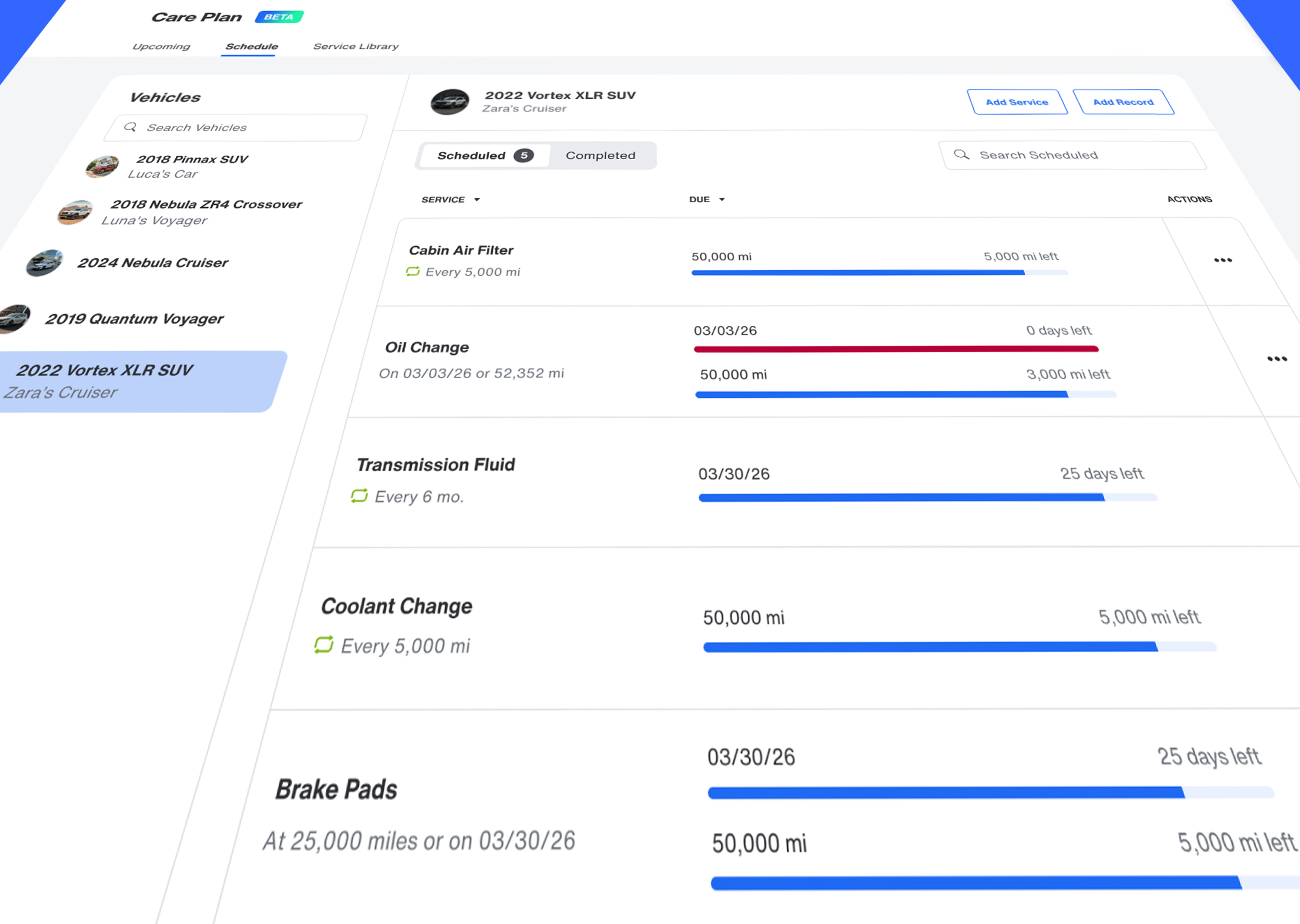
At a glance, you can see what is coming due. Under the Schedule tab, select a vehicle from the left panel. The system displays scheduled maintenance along with a quick view of how many miles or how many days remain until each service is due.
This visibility allows business operators to plan service appointments before a vehicle becomes unavailable during critical hours. Families can check upcoming maintenance monthly and schedule appointments in advance.
Instead of guessing or digging through paperwork, everything is organized in one place.
Recording Completed Services That Were Not Scheduled
Of course, real life does not always follow a plan. Sometimes a vehicle receives maintenance earlier than expected. Sometimes a shop performs additional services during a visit. When that happens, you can still record the maintenance inside Care.
Under the Schedule tab, click the Add Record button in the upper right. A slider will appear where you can enter the details of the completed service. Once finished, click Add Record to save it.
This ensures your maintenance history remains complete, even if the service was not originally scheduled through the system. For fleet operators, complete records support compliance reviews, insurance documentation, and internal accountability. For families, a documented service history can meaningfully support resale value when it is time to sell a vehicle.
Viewing Completed Care Events
Over time, your maintenance history becomes a valuable asset. To view completed services, select a vehicle and click Completed under the vehicle name within the Schedule tab. You will see a structured list of past maintenance events.
Having this history in one place makes it easier to demonstrate consistent upkeep. Fleet managers can reference service patterns to identify vehicles that are approaching multiple services at once and plan accordingly. Families can provide a documented maintenance history when selling a vehicle, which builds buyer confidence and can support a stronger asking price. In both cases, organized records replace guesswork with evidence.
Viewing Scheduled Care on the App
While the browser offers the most complete experience for setting up and managing Care, the mobile app makes it easy to check information on the go.
From the main screen of the app, select the vehicle you want to view. Tap Care at the bottom middle of the vehicle card. A timeline will display, showing the date and mileage of the next scheduled Care event at the top.
If necessary, you can manually add a Care event by tapping the + in the upper right corner and entering the details. However, for full control and setup flexibility, the web platform remains the recommended experience. The app is ideal for quick checks and visibility when you are away from your desk.
Why Care Makes Vehicle Maintenance Easier
Ultimately, the real value of Care becomes clear when you see how it simplifies preventive maintenance across all your vehicles.
Care consolidates what most vehicle owners currently manage across spreadsheets, calendar reminders, and paper records into a single, connected system. Structured scheduling, flexible due-by options, and organized service history all live inside the same platform that already tracks your vehicles in real time.
For businesses, this supports consistency and accountability. For families, it provides peace of mind. Vehicles that receive consistent maintenance are more reliable, safer, and often less expensive to own over time.
Care turns routine vehicle maintenance into a manageable, repeatable process.
Frequently Asked Questions About Bouncie Care
Can I set services to be due by miles, time, or both?
Yes. When creating a service, you can choose mileage-based intervals, time-based intervals, or a combination of both.
What is the difference between the Service Library and the Schedule tab?
The Service Library contains all available services you can use. The Schedule tab shows which services are applied to specific vehicles and when they are due.
Can I create one-time services?
Yes. Services can be set as recurring or one-time depending on your needs.
How do I mark a service as complete?
Click the ellipsis next to the scheduled service and select Mark as Complete.
Can I manage multiple vehicles from one place?
Yes. You can select different vehicles from the left panel and manage their maintenance schedules individually within the same Care section.
Will I see Care information in the mobile app?
Yes. You can view upcoming Care events in the app and add manual entries if needed, though full setup and management is best done on the web platform.
Start Managing Vehicle Maintenance in Bouncie Today
Routine vehicle maintenance should not feel reactive. It should feel organized and planned.
With Care in the Bouncie web experience, you can build your Service Library, apply services to specific vehicles, track what is coming due, record completed maintenance, and maintain a clear service history over time.
Whether you manage a growing fleet or simply want better visibility into your family's vehicles, Care brings structure to an area that is often overlooked.
Log in to your Bouncie account, open Care, and build your first Service Library today.The setup takes only a few minutes and puts every vehicle's maintenance schedule in one place from that point forward.